You probably record your screen more often than you realize. A bug report, a class walkthrough, a product demo, a quick how-to for a teammate—each one is easier to show than explain in a long message. Now AI is changing screen recording from a simple capture tool into something smarter. It can organize, summarize, and polish what you record, which saves time and cuts down the usual back-and-forth.
Screen recording used to be simple, and a little messy
For years, screen recording was mostly a blunt instrument. You hit record, talked through a task, stopped the video, and hoped the other person had the patience to watch the whole thing.
That approach still works, but it creates friction. If your clip is seven minutes long and the useful part starts at minute five, your viewer has to hunt for it. If you forget a step, you often need a redo. If you send the video to five people, you may still get five versions of the same follow-up question.
You’ve probably seen this in school, work, or even gaming communities. A screen recording can explain a lot fast, yet it can also become digital clutter. The old format captures what happened, but it doesn’t always make that information easy to use.
AI adds structure instead of just capturing chaos
The biggest shift with AI is that it doesn’t just record your screen. It helps shape the recording into something more useful.
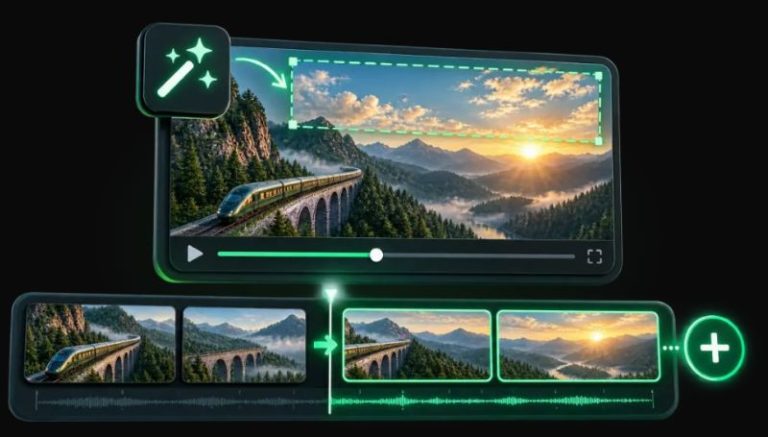
A strong AI Screen Recorder can turn a rough walkthrough into a clearer asset by identifying steps, organizing actions, and making the final output easier to share. Instead of handing someone a raw video and wishing them luck, you give them something closer to a guided explanation.
That matters when speed counts. If you’re onboarding a new hire, documenting a software workflow, or explaining a settings change to a client, structure makes the message easier to absorb. You spend less time repeating yourself, and your audience spends less time decoding what they’re seeing. The recording stops being a loose file and starts acting more like usable documentation.
Teaching gets better when students can replay the exact process
If you’ve ever tried to learn software from a live demo, you know the pain point. One missed click and suddenly the whole lesson feels like it sprinted past you.
AI-enhanced screen recording helps because it supports repeatable learning. You can record how to solve a spreadsheet problem, edit a video timeline, or navigate a coding tool, then share a version that’s easier to follow later. Students, interns, and self-learners can revisit the sequence without asking you to repeat every tiny step.
That’s especially useful for procedural learning. It’s one thing to read “open settings and adjust permissions.” It’s another to actually watch the cursor move, the menu open, and the correct option get selected. The details matter. AI tools can make those details more visible and organized, which reduces confusion and keeps your explanation from turning into a verbal maze.
Workplaces save time when explanations stop living in chat threads
A surprising amount of office confusion comes from people trying to explain visual tasks through text alone. You get a paragraph, then a screenshot, then a second paragraph correcting the first paragraph. It’s not exactly elegant.
Screen recordings clean that up, and AI makes them more scalable. Instead of writing the same instructions for each coworker, you can create one walkthrough that shows the process in context. Teams can use recordings for onboarding, software support, QA reviews, feature feedback, and internal training.
The real advantage is consistency. When a process changes, you can update the walkthrough rather than relying on tribal knowledge floating around Slack, email, or someone’s overworked memory. That’s good for remote teams, hybrid teams, and frankly any team where people are busy enough to forget what was said in Tuesday’s meeting by Wednesday afternoon.
Good recordings still depend on how you present the information
AI can improve a recording, but it won’t rescue a chaotic explanation with ten tabs open, five side quests, and a microphone that sounds like it’s underwater.
If you want your screen recordings to work well, keep them focused:
– Start with one clear goal for the recording
– Close unrelated windows and notifications
– Use a simple script or short bullet outline
– Speak at a steady pace without rushing clicks
– Break longer topics into smaller recordings
– Show the outcome your viewer should expect
Think of AI as an assistant, not a magician. It can organize and enhance what you capture, but your source material still matters. Clean input leads to useful output. Messy input usually leads to a polished-looking mess, which is still a mess—just with better branding.
The broader shift is about communication, not just software
The rise of AI screen recording points to a bigger trend: people increasingly want communication that is visual, fast, searchable, and reusable.
Written instructions still matter. So do meetings, live demos, and one-on-one support. Yet many tasks sit in a sweet spot where a recorded walkthrough is simply the better tool. It shows behavior, context, and sequence all at once. AI strengthens that format by making recordings easier to process after they’re made.
That has implications beyond tech teams. Customer support staff can explain fixes faster. Teachers can build repeatable lesson assets. Freelancers can walk clients through deliverables. Small businesses can document operations without hiring a full training department. The common thread is efficiency with clarity, not efficiency at the expense of clarity.
Privacy and accuracy still deserve your full attention
For all the convenience, AI screen recording isn’t something you should use carelessly. Your screen may contain sensitive information: passwords, private messages, customer records, financial data, or internal business material.
Before you record, check what’s visible. Before you share, confirm who should have access. If a tool adds summaries, captions, or automated steps, review them for accuracy. AI can save time, but it can also misread context, label steps imperfectly, or miss a nuance that matters.
A smart workflow includes both automation and human review. That’s the balance that keeps screen recording useful instead of risky. If the recording is meant for customers, students, or external partners, precision matters even more. A polished mistake is still a mistake, and those tend to travel fast.
Where this is heading next
You can expect screen recording tools to become more interactive over time. Instead of static videos, you’ll likely see more recordings that turn into searchable tutorials, step-by-step guides, and support assets that feel closer to live help.
That shift changes what people expect from digital communication. Sending a raw clip may start to feel outdated for many common tasks. People will want recordings that are easier to skim, easier to update, and easier to act on.
If you create tutorials, manage teams, teach skills, or explain software in any form, this is worth paying attention to. AI screen recording isn’t just another shiny feature with a futuristic label slapped on top. It solves a very ordinary problem: people need clearer explanations, and they need them without wasting half the day getting there.
About the Author